Building your own website doesn’t have to be complicated. Many people think they need coding skills or technical knowledge before they can get started, and that stops them from taking step one. One of the main reasons this is possible is because of WordPress.
WordPress is a powerful and easy to use CMS (Content Management System) used by hundreds of thousands of businesses, bloggers, freelancers, and online shops around the world. It gives you the tools to design, build, and publish your website without having to write down a single line of code.
In this blog, we’ll show you the way the complete process works. You’ll learn how to get started with a WordPress website, set it up, and customize it to your needs. Along the way, we’ll also share practical tips to make everything simpler, even if you’ve never created a website earlier than.
What is WordPress?

WordPress is a website building system. It uses themes, blocks and plugins so you can shape your site the way you want. You do not need technical knowledge or a design background.
There are two types:
WordPress.com
- Hosted for you
- Limited control
- Paid plans
WordPress.org
- Free software
- Full control
- You install it on your hosting
Most people choose WordPress.org because it gives freedom, control, and flexibility.
Why is WordPress popular for creating a Website?
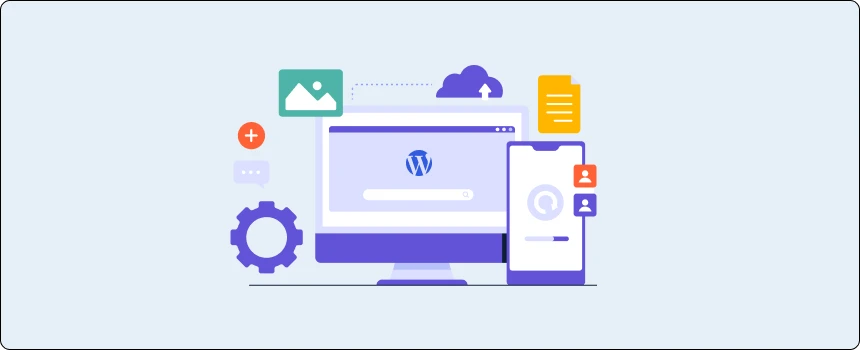
WordPress is popular as it offers people complete control over their website without needing technical skills. You can change text, images, colors, and layouts from a clean dashboard. It also offers thousands of themes and plugins that help you add new functions with a few clicks. This makes it smooth for beginners to build a website that looks professional and matches their goals.
Another reason for its popularity is flexibility. You can create any form of website, from a small personal blog to a large business website or online shop. WordPress also helps search engine optimization tools that help your pages rank better on search engines like Google. It fits both beginners and experienced users, which is why many people pick it for building websites.
Why WordPress Works For Beginners?
Easy to manage
You can update text, images, menus, and pages in minutes. The dashboard is simple and organized, so you can make changes without technical help.
Great for all website types
WordPress supports blogs, business sites, portfolios, online stores, booking sites, and more. You can create a website that fits your exact needs.
Works with SEO tools
You can improve your ranking on search engines using plugins and simple settings. This helps more people find your website online.
Supports online stores
With WooCommerce, you can sell products, manage payments, and track orders. It makes setting up an online shop easy, even for beginners.
Affordable
Many themes and plugins are free or low cost. You can build a professional website without spending much money.
How WordPress Works Behind the Scenes
WordPress works through a simple system that connects your website hosting, your database, and your theme files. Your hosting is the place where all of your website documents live, your database stores your content, images, and theme, and your theme controls how everything appears on the screen.
When someone visits your site, WordPress takes your content from the database and combines it with your theme’s layout. It then builds the complete web page and shows it in the visitor’s browser. This entire process occurs in a few seconds.
You don’t need to write any code or handle technical tasks; WordPress takes care of everything in the background while you focus on creating and updating your content.
Themes vs. Templates
A theme controls the overall look of your whole website. It decides the colors, fonts, button styles, and how different parts of the site are arranged. When you install a theme, your website gets a base design that you can customize.
Templates are smaller layout files inside that theme. Each template controls how one type of page looks. For example, your theme may include templates for:
- Home page
- Blog page
- Contact page
- About page
- Product page
This means you can use one theme but still have different layouts for different pages. For example, your blog page might show posts in a grid, while your contact page uses a simple form layout.
Most themes give you several templates to choose from. You can switch templates with a few clicks to change the look of a single page without changing your whole theme. This makes it easy to create a website that feels organised and professional while still matching your style.
Blocks and the Block Editor
WordPress uses a simple block editor to help you build your pages. Every part of your page is made from a “block,” and you can add as many blocks as you need.
Common blocks include:
- Text
- Image
- Heading
- Button
- Video
- Gallery
- List
- Quote
- Columns
You can click to add a block or drag it into your page. After that, you can move blocks up or down, change their size, or edit their style. This makes it very easy to design your page the way you like.
The best part is that you don’t need to know any code. You only choose a block, place it where you want, and fill in your content. This gives you full control over your layout while keeping everything simple and beginner friendly.
Choosing Between Free and Premium Themes
- More design options
- Faster support
- Extra website features
- More customization control
How to Customize Your WordPress Theme
Go to Appearance → Customize.
You can edit:
- Colors
- Fonts
- Header style
- Footer style
- Site logo
- Background
- Menus
Each theme offers different settings, but the process is simple. Make small changes and preview them before you save.
How to Build a Menu in WordPress
Open Appearance → Menus.
- Create a new menu. Add pages to it.
- You can drag items to change their order.
- You can also create dropdown menus by placing items under each other.
Assign your menu to:
- Header
- Footer
- Mobile menu
Your main menu guides your visitors.
How to Set Up Your Homepage with WordPress
You can show a static homepage or a blog feed.
To set a static homepage:
Go to Settings → Reading.
Choose:
- Homepage → Your selected page
- Posts page → Blog page
This structure gives your site a clean front page.
How to Create a Blog Post in WordPress
Go to Posts → Add New.
Write your title. Add content with blocks. Insert images.
Use short paragraphs and clear headings.
Add:
- Category
- Featured image
- Tags (optional)
- Publish when ready.
How to Add Images and Media the Right Way
- Go to Media → Add New.
- Upload your images.
- Use JPG for photos and PNG for logos or graphics.
- Add alt text to describe each image.
This improves SEO and helps search engines understand your content.
How to Use Categories and Tags
Categories help you organize your blog by big topics.
- Example: Web Design, Tutorials, Tips
- They make it easier for visitors to find what they want.
Tags give more details about each post.
- Example: plugins, themes, blocks
- They highlight specific points in your content.
Think of categories as folders and tags as labels. Using both makes your blog simple and easy to navigate.
How to Handle Comments on Your Website
Comments build engagement.
Go to Settings → Discussion to control comment rules.
You can:
- Allow comments
- Hold comments for approval
- Block spam
- Close comments on old posts
Review comments often to keep your blog clean.
How to Set Up Permalinks
Permalinks are the web addresses (URLs) for your pages and posts. They show up in the browser and help visitors and search engines understand your content.
To set them up, go to Settings → Permalinks in your WordPress dashboard. Choose the “Post name” option. This makes URLs clean and easy to read, like:
yoursite.no/sample-post
Using clear permalinks is good for SEO and makes your website look professional and organized.
How to Add a Logo and Brand Colors
To add your logo, go to Appearance → Customize → Site Identity in WordPress. Upload your logo so it appears on your website.
Next, set your brand colors under the Colors section. Use the same color tones across your pages, menus, and buttons.
Having a logo and consistent colors helps your website look professional and makes your brand easy to recognize.
How to Create a Footer and Header
Themes offer built-in tools to build the header and footer.
You can add:
- Menu
- Logo
- Social icons
- Contact info
- Copyright text
Footers help visitors find important information quickly.
How to Set Up a Child Theme
A child theme protects your custom changes. It keeps your edits safe during theme updates.
You create a child theme by:
- Making a new folder
- Adding a style.css file
- Linking it to the parent theme
You can also use plugins that create child themes with one click.
How to Add Custom CSS Without Coding Knowledge
- Go to Appearance → Customize → Additional CSS.
- Here you can paste small CSS snippets to change colors, spacing and layout.
- Many themes give you ready CSS code that you can copy and paste.
- This helps you improve design with small adjustments.
How to Create Landing Pages That Convert
Landing pages focus on one goal.
Examples:
- Lead generation
- Product signups
- Service inquiries
Use:
- Clear headline
- Short text
- One strong call to action
- Clean design
- Trust signals
Avoid clutter to keep visitors focused.
How to Add Social Media Buttons
Use plugins or theme settings to add social links.
You can place social icons in:
- Header
- Footer
- Sidebar
- Blog posts
This helps visitors follow your pages on social platforms.
How to Integrate Email Marketing Tools
You can connect tools like:
- Mailchimp
- MailerLite
- ConvertKit
Add signup forms on:
- Homepage
- Blog sidebar
- Footer
- Landing pages
This helps you grow your email list.
How to Connect WordPress With Google Tools
Connecting your WordPress website to Google tools helps you track traffic, see how your web page is appearing, and improve SEO. Some important tools to connect are:
- Google Analytics: Shows how many people visit your site, which pages are popular, and how site visitors behave.
- Google Search Console: Helps Google find and index your pages, and shows if there are any errors.
- Google Tag Manager: Lets you add tracking codes or scripts without touching your web page’s code.
Most SEO plugins, like Yoast SEO or Rank Math, make it very easy to link these tools. Once connected, you could screen your website’s visitors and overall performance from Google.
How to Add a Sitemap to Your Website
A sitemap is like a map of your website that shows engines like Google all your pages, posts, and important content. It enables Google and other search engines to find and recognize your website faster.
The easiest way to create a sitemap in WordPress is by using an SEO plugin, which includes Yoast SEO or Rank Math. These plugins generate a sitemap automatically and update it whenever you add new pages or posts.
After your sitemap is ready, you have to submit it to Google Search Console. This tells Google where to locate your pages, which may help your website rank higher in search results faster and enhance your search engine optimization.
A sitemap ensures search engines can index your website, which is particularly important for larger websites with many pages.
How to Improve Image Optimization
Large images slow your site.
Use these steps:
- Compress images
- Resize them before upload
- Use WebP format when possible
Good optimization makes your pages load faster.
How to Handle Website Errors and Fix Issues
Common issues include:
- 404 errors
- Plugin conflicts
- Theme issues
- White screen
- Slow load times
You can fix them by:
- Deactivating plugins one by one
- Switching to a default theme
- Clearing cache
- Checking your hosting settings
Keep backups to recover fast.
How to Keep Your WordPress Site Clean Over Time
A clean site performs better.
Do this often:
- Delete unused themes
- Remove unused plugins
- Clear media library
- Review content
- Fix broken links
This keeps your website fresh and organized.
How to Move Your WordPress Website to Another Host
If you want to move your WordPress website to a new hosting provider, there are a few ways to do it. You can use:
- Backup plugins
- Hosting migration tools
- Manual transfer
Before starting, always make a full backup of your website, including files and the database. This keeps your content safe in case something goes wrong.
After backing up, upload your website files and database to the new host. Then, update your domain settings so your website points to the new hosting.
Following these steps ensures your site moves without losing content, design, or functionality. Many hosting providers also offer guides or support to make migration easier.
How to Choose the Right Plugins for Your Needs
Pick plugins only when needed.
Check:
- Ratings
- Reviews
- Update history
- Support quality
Avoid installing too many plugins to keep your site fast.
How to Use an Extension in WordPress
Extensions, also called plugins, add extra features to your WordPress website. You can use them for SEO, security, forms, galleries, online stores, and much more. Here’s how to use them:
Find the Plugin
- Go to your WordPress dashboard.
- Click Plugins → Add New.
- Search for the plugin by name or function.
Install the Plugin
- Click Install Now on the plugin you want.
- Wait a few seconds while WordPress installs it.
Activate the Plugin
- After installation, click Activate.
- The plugin is now ready to use.
Configure the Plugin
- Most plugins have settings under Settings or their own menu.
- Adjust options according to your website needs.
Keep Plugins Updated
- Check Plugins → Installed Plugins.
- Click Update Now whenever updates are available.
Updated plugins keep your website secure and working well.
How to Test Your Website Before Launch
Before launching, check:
- Speed
- Mobile layout
- Forms
- Links
- Images
- Checkout process
- Page structure
Test on different devices to ensure a smooth user experience.
How to Improve User Experience
A good user experience (UX) makes visitors enjoy using your website and helps them find what they need fast. To improve UX, focus on:
- Clean layout
- Clear headlines
- Simple menus
- Fast loading
- Helpful content
When your website is easy to use, visitors stay longer, explore more pages, and are more likely to take action, such as signing up or contacting you.
How to Track Leads and Form Submissions
To see who is contacting you or signing up on your website, you can use WordPress plugins that collect leads and store them in your dashboard. Popular options like WPForms or Gravity Forms make it easy to view all submissions in one place.
You can also connect your forms to email marketing tools, so new leads are added automatically to your mailing list. Tools you can use include:
- Mailchimp
- MailerLite
- ConvertKit
Tracking leads helps you understand which pages and forms get the most inquiries. With this information, you can improve your website, make forms easier to use, and increase the number of visitors who take action.
How to Use Widgets and Sidebars
Widgets add small tools to your:
- Sidebar
- Footer
- Blog page
You can add:
- Search bar
- Recent posts
- Categories
- Contact info
- Social links
This improves navigation and engagement.
How to Create a Website with WordPress
If you want to create a WordPress website from scratch, the process is simple and beginner friendly. You only need a domain, hosting, and a basic setup. Below is an outline of the main steps you follow when creating a website with WordPress:
Quick Steps to Create a WordPress Website:
- Choose a domain name that fits your brand
- Buy a hosting plan and connect your domain
- Install WordPress from your hosting dashboard
- Log in to your WordPress admin panel
- Pick a clean and fast theme
- Create important pages like Home, About, Services and Contact
- Add a menu and set up your homepage
- Install plugins for SEO, security and backups
- Add images, write content and publish your pages
- Test the website on mobile and desktop
- Launch your site after final checks
You can follow all these steps in detail in our full guide here: How to create website with WordPress.
WordPress Beginner Checklist
Here is a simple checklist to guide you:
- Buy domain
- Buy hosting
- Install WordPress
- Select theme
- Install core plugins
- Create pages
- Add text and images
- Build menus
- Secure your site
- Improve speed
- Set up SEO
- Publish blog content
- Track analytics
- Regular Update
Use this list while building your site.
Common Mistakes Beginners Should Avoid
Many beginners repeat the same mistakes. Avoid these:
- Too many plugins
- Heavy themes
- No backups
- Poor image quality
- Long paragraphs
- Ignoring mobile layout
- Weak SEO setup
Keep things simple and you will build a strong site.
When To Work With a Professional Designer
You can build the basics on your own. But some tasks need professional skill.
A designer can help with:
- Full website design
- UX layout
- Custom features
- Branding
- Speed optimization
- Technical SEO
- Store setup
- Security setup
If you want a polished, highmquality website, a professional team saves time and creates a stronger result.
Let Us Help You Build Your Website
Starting a WordPress site can feel big, but you don’t have to do it alone. At nettsidedesign.no, we help you create your own website that fits your idea. You tell us what you want, and we build it in a way that looks good and works well.
Whether you need a new WordPress website or want to fix an old one, we make the steps easy. We set up the design, pages, speed, and basic SEO for you. If you want a website that is easy to use and ready to grow, contact us. We are here to help.
Key Takeaways
- WordPress helps you build a website without knowing how to code.
- You can choose between WordPress.com (hosted) and WordPress.org (full control).
- Themes control your website’s design, while templates control single-page layouts.
- Blocks let you build pages by dragging and arranging content.
- Plugins add features like forms, SEO tools, and social icons.
- A clean homepage and menu improve how users move through your site.
- SEO settings, good permalinks, and alt text help you rank on Google.
- A child theme protects your custom changes during updates.
- Too many plugins and large images can slow down your site.
- Regular updates, backups, and speed checks keep your site healthy.
FAQs
How to create a website for free?
You can create a site using the WordPress free version. Use free themes and plugins and start building your pages. You only need hosting later if you want a custom domain.
Can I create a WordPress online store?
Yes, you can build a WordPress online store with WooCommerce. It lets you add products and manage payments easily.
Will my WordPress website work on mobile phones automatically?
Most modern themes are mobile responsive, meaning they adjust to phones and tablets automatically. Only preview your site on mobile before publishing.
What is the price of a WordPress website?
The WordPress website price depends on hosting and extras. A basic site costs low, while premium themes or custom work increase the price.
Can I undo changes in WordPress if I make a mistake?
Yes. The block editor has an undo/redo button, and blog posts/pages save revisions so you can go back to older versions.